 Lattika
Window zones for an ultrawide monitor on a Mac
A 34- or 40-inch ultrawide is wide enough for three or four windows side by side, but the tiling built into macOS offers halves and quarters: two windows stretched across the whole width, or four short ones. Lattika divides the screen the way you actually use it, and you drop windows into those zones with a Shift-drag.
14-day full trial · One-time purchase · Signed and notarized by Apple
Layouts made for 21:9
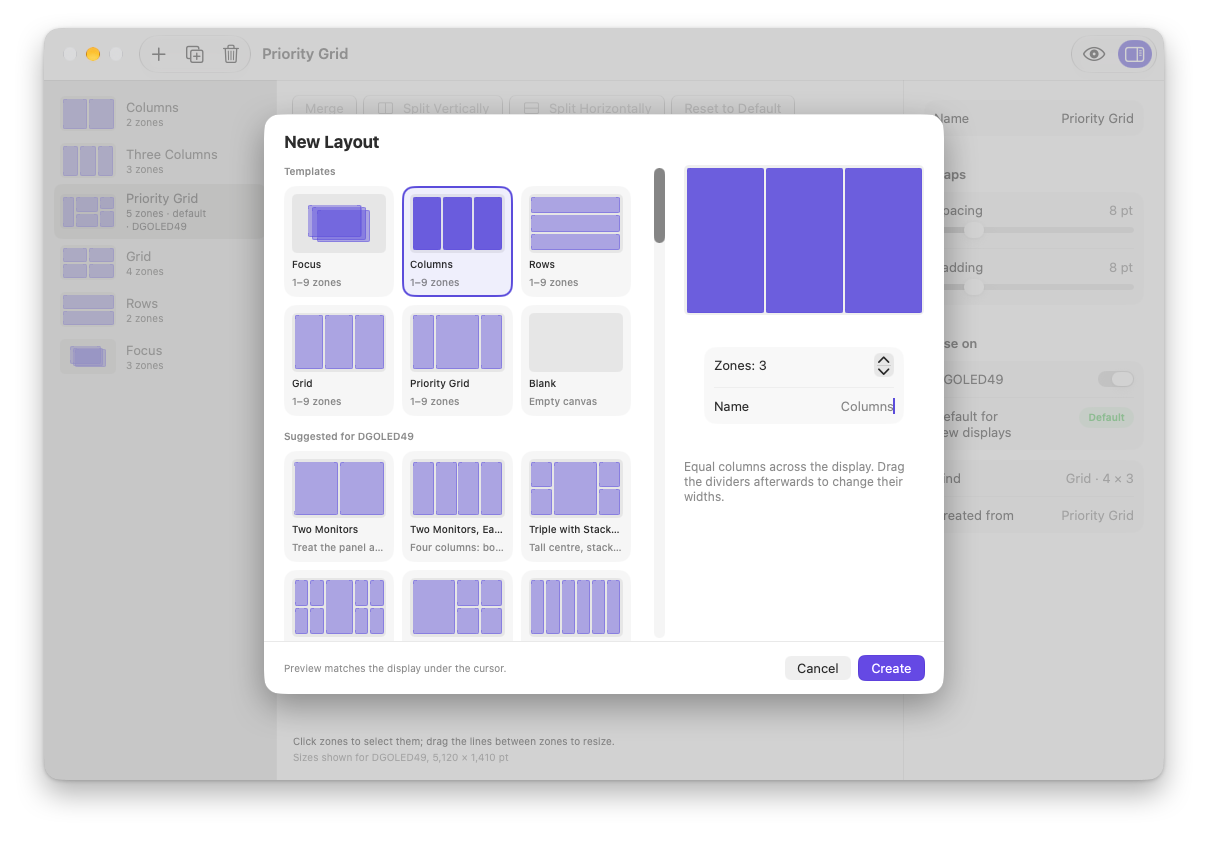
When Lattika sees a 21:9 display, the New Layout sheet suggests these presets first. Each is a starting point you can change in the editor.
| Preset | Zones |
|---|---|
| Center Stage | A wide centre zone with a column on either side. |
| Center + Stacked Sides | The centre stays tall; each side splits into top and bottom. |
| Ultrawide Thirds | Three generous columns. |
| Four Columns | Four equal columns. |
| Main + Two Columns | Half for the main app, two quarter columns beside it. |
Set it up in a minute
- Install Lattika and allow the Accessibility permission when it asks.
- Open the layout editor with ⌃⌥` and click New Layout (+). The presets for the displays attached right now are listed first.
- Pick a preset, then under Use on in the inspector, turn on your monitor.
- Hold Shift while dragging a window, and drop it into a zone. Add Control to stretch it across several zones.
Tips for an ultrawide desk
- Centre what you look at most. Center Stage keeps your main window straight ahead and puts reference windows at the sides.
- Docking a laptop. Each display keeps its own layout, and a MacBook remembers one layout for its built-in screen when docked and another when not.
- Every morning. When you plug the monitor back in, window memory returns windows to their zones; a workspace restores the whole desk with one click.
- Gaps. Spacing between zones and padding at the screen edges are set per layout, in points.
Questions
Which monitors does it work with? Any display macOS can use. Lattika recognizes an ultrawide display by its shape, not its brand, and suggests the matching presets.
Does it work with a curved monitor? Yes. Zones follow the screen's pixels; the curve makes no difference.
Can I use a different layout on my other monitor? Yes. Every display has its own layout, and a window keeps its zone number when you move it to the next display with ⌃⌥⌘→.